Protecting Your Web Server from Attacks: WAF, fail2ban, and Rate Limiting
94% of logins on the Cloudflare network are bots. Learn how WAF, rate limiting, and fail2ban block attacks before they take down your site.
by Cleverson Gouvêa
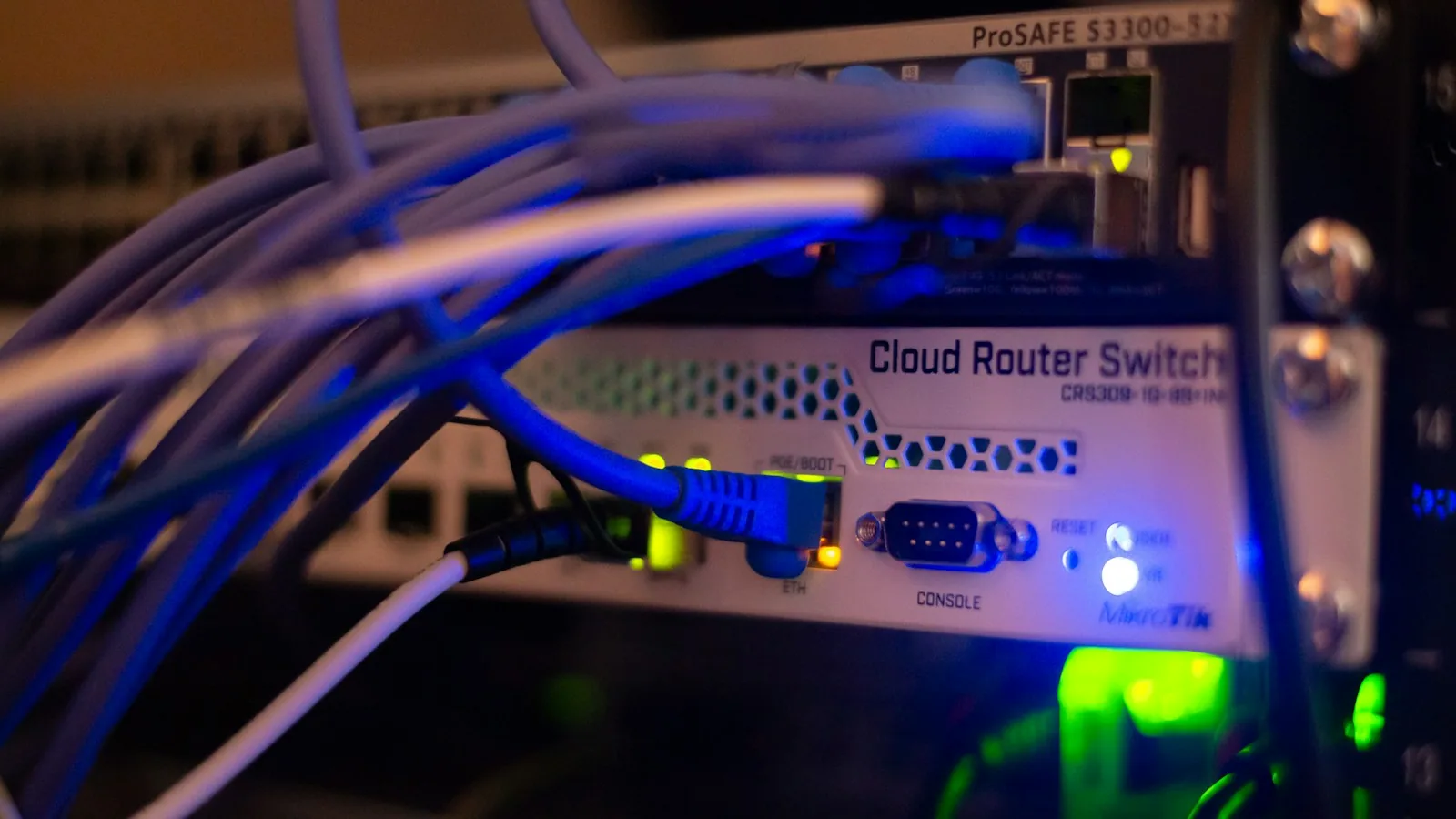
Protecting your web server from attacks is no longer just for large enterprises: by 2026, anyone with a website, online store, or system running on their own VPS is a daily, automated target. In this guide, I'll show you the three layers we use at Agathas Web—WAF, fail2ban, and rate limiting—what each one blocks, its cost, and when it might hinder more than help.
TL;DR
- 94% of login attempts passing through Cloudflare's network come from bots, according to the company's 2026 threat report. Your login form is being tested right now.
- WAF blocks malicious requests before they reach the server; rate limiting limits volume per IP or route; fail2ban reads logs and bans persistent attackers. One layer does not replace another.
- Cloudflare's Free plan already provides basic managed WAF, 5 custom rules, and 1 rate limiting rule—sufficient to start, but insufficient for a critical system.
- Trap #1: fail2ban behind a proxy/CDN without configuring the real IP bans Cloudflare itself and takes down your site.
- Without someone reading logs and adjusting rules, all protection becomes outdated. That's where managed hosting comes in.
Why Protecting Your Web Server from Attacks Has Become Routine, Not Exceptional
Until a few years ago, the conversation about attacks was, "What if a hacker targets my company?" Today, no one is chosen. Bots scan entire IP ranges, test leaked passwords on any login screen they find, and unleash floods of requests against responsive targets.
Recent figures make this clear:
- Cloudflare's H1 2026 DDoS threat report accounted for 29.64 trillion HTTP DDoS requests mitigated in the semester and 23.2 million network-layer attacks—approximately 5,343 per hour.
- In the same report, Brazil surpassed the United States as the top country of origin for DDoS attacks in the semester (14.9% vs. 13.4%). A significant portion of this traffic originates from infected machines within Brazil.
- 90.6% of attacks last less than 10 minutes. By the time someone notices and opens a ticket, the damage is already done.
- The Verizon DBIR 2025 shows that 88% of breaches involving basic web application attacks leveraged stolen credentials, and brute force in this category jumped from around 20% to 60% of incidents.
- The Imperva Bad Bot Report 2025 estimates that malicious bots now account for 37% of all internet traffic, and total automated traffic has surpassed human traffic (51%).
In practice, protecting your web server from automated attacks is no longer optional: your entry-level VPS receives the same kind of pounding as a large portal—just without anyone watching. On the servers I administer, the access log of a newly published WordPress site shows attempts on /wp-login.php and /xmlrpc.php within hours, even before the site appears on Google.
The Three Types of Attacks That Take Down Small Business Servers
Before choosing tools to protect your web server from these types of attacks, it's worth categorizing the problem. In our experience with websites, systems, and Moodle environments, almost every downtime incident falls into one of these three groups.
Brute Force and Credential Stuffing
Brute force is trying password after password until one works. Credential stuffing is the refined version: the bot uses email and password pairs leaked from other services, betting that the user reused the password. The same 2026 Cloudflare threat report indicates that 46% of human logins use credentials that have already appeared in breaches.
The risk isn't just the breach. Each login attempt consumes CPU: PHP spins up, queries the database, calculates password hashes. A thousand attempts per minute on a wp-login.php are enough to slow down a small VPS for legitimate customers.
Scraping and Scanning Bots
These are bots that don't want your password, but rather your content, prices, or a known vulnerability. They traverse URLs like /.env, /phpmyadmin, /wp-content/plugins/<vulnerable-plugin>/, and any path that has had a CVE published. Since 2025, AI crawlers have joined them, capable of downloading thousands of pages in sequence.
Application-Layer DDoS (Layer 7)
Unlike volumetric DDoS, which attempts to flood the network link, application-layer DDoS sends HTTP requests that appear legitimate—internal searches, report pages, shopping carts—chosen precisely because they are resource-intensive for the server. A few hundred requests per second on the right route can take down a system that would otherwise handle tens of thousands of cached page accesses.
The Three Layers to Protect Your Web Server from Attacks
Those who try to protect their web server from attacks often install one tool and stop there. The most useful way to understand WAF, rate limiting, and fail2ban is by each one's position in the request path:
| Layer | Where it runs | What it blocks best | Weakness |
|---|---|---|---|
| WAF (Web Application Firewall) | At the edge (Cloudflare) or on the server (ModSecurity + OWASP CRS) | SQL injection, XSS, known CVE exploits, identified bad bots | False positives on legitimate forms; doesn't understand your business logic |
| Rate limiting | At the edge and/or on Nginx/Apache and within the application itself | Brute force, expensive route floods, aggressive scraping | Poorly calibrated limits block legitimate users (corporate, school, 4G NAT) |
| fail2ban | On the server, reading logs | Persistent attackers: SSH, login, repeated scanning | Reactive—acts after the log; useless if the recorded IP is the proxy's |
The central point: to truly protect your web server from attacks, you need all three, because each covers the gaps of the others. The WAF doesn't know that IP X failed password attempts 40 times; fail2ban does. Fail2ban doesn't see the traffic that the edge has already discarded; and rate limiting doesn't recognize an SQL injection signature.
WAF: The Entry Point Filter
A WAF is a firewall that understands HTTP. Instead of just looking at ports and IPs, it inspects the URL, headers, and request body, comparing them against known attack patterns.
Edge WAF: Cloudflare
This is the path we use by default to protect web servers from application attacks. Requests pass through Cloudflare before reaching your server, and anything blocked there doesn't consume a single CPU cycle on your end. According to the official WAF documentation, the Free plan includes the Free Managed Ruleset (rules for high-impact vulnerabilities like Log4Shell and Shellshock) and 5 custom rules. The Pro plan costs $20/month with annual billing ($25 monthly) and unlocks the complete managed ruleset.
The custom rules that yield the most benefit, in our experience:
- Managed challenge on administrative routes—
/wp-admin,/wp-login.php,/admin—for visitors not originating from the US, when the audience is exclusively national. - Total blocking of
/xmlrpc.phpon WordPress sites that don't use a mobile app or Jetpack. - Blocking paths that don't exist in your system and only appear during scanning:
/.env,/.git/,/phpmyadmin.
Server-Side WAF: ModSecurity and OWASP CRS
When traffic doesn't pass through a CDN, or the client requires rules within their own server, the open-source alternative is ModSecurity with the OWASP Core Rule Set (CRS). Two facts that have changed the landscape, which many older tutorials ignore:
- Trustwave ended support for ModSecurity on July 1, 2024, and transferred project stewardship to OWASP.
- F5 discontinued the commercial NGINX ModSecurity WAF on March 31, 2024.
The CRS remains active: the 4.25.x line is LTS, with security fixes planned until Q3 2027, according to the OWASP CRS project. It works, but requires fine-tuning—a CRS at a high paranoia level, installed without an observation period, will block contact forms, post editors, and file uploads on day one.
When NOT to Use WAF in Blocking Mode
Do not enable direct blocking on systems with extensive free-text input (ERP, Moodle with forums and questionnaires, rich editors) without first running it for a few days in log-only mode. In Moodle, for example, questions with code snippets or SQL in a programming class can easily trigger injection rules.
Rate Limiting: How Much is Too Much?
Rate limiting is the component that most helps protect web servers from volume attacks. It involves counting requests per client within an interval and cutting off those who exceed the threshold. It seems simple; the challenge is choosing the right numbers.
At the Edge
Since 2022, Cloudflare has offered rate limiting on all plans, but with very different limits. According to the rate limiting rules documentation:
- Free: 1 rule, counting window up to 10 seconds, blocking up to 10 seconds, counting only by IP and filtering only by path.
- Pro: 2 rules, window up to 1 minute, blocking up to 1 hour.
- Business: 5 rules, window up to 10 minutes, blocking up to 1 day, and IP counting with NAT support.
With a single rule on the Free plan, use it on your login route. That's where the greatest gain is.
On the Web Server
On Nginx, the limit_req module handles this with the leaky bucket algorithm: you define the rate (e.g., 5r/m for /wp-login.php) and a tolerated burst with burst. On Apache, the equivalent is usually mod_evasive or ModSecurity's own rules. The important thing is to limit route by route: low limits for login and search; no limits for static files.
Within the Application
The most precise layer is the application itself, because it knows who the user is. In this site's administrative panel, we implemented a database record of login attempts that blocks by account and IP after a sequence of errors. Moodle has this natively: under Site administration › Security › Site policies, the account lockout parameters (attempt limit, window, and duration) are disabled by default—and almost no one enables them.
Trap: School and Corporate NAT
An entire school, a call center, or a 4G carrier might access the internet through the same IP. We've seen EAD platforms crash an entire class's exam because a rate limit of 60 requests per minute per IP counted 40 students as "one client." Calibrate based on actual peak logs, not tutorial numbers.
fail2ban: Persistent Attackers Get Banned
The fail2ban reads log files, looks for failure patterns (wrong SSH password, 401 on login, series of 404s), and, upon exceeding a limit, creates a firewall rule banning the IP for a period.
Default Values (and Why to Change Them)
Fail2ban is the oldest layer for protecting web servers from persistent attacks, but it comes with timid default values. In the official jail.conf, the default is bantime = 10m, findtime = 10m, and maxretry = 5: five failures in ten minutes result in a ten-minute ban. For a bot, ten minutes is a coffee break. What we apply:
bantime.increment = true—comes commented out by default; when activated, each re-offense doubles the ban time.recidivejail—already included in the package and bans for 1 week anyone who has been banned multiple times in 1 day.- Specific jails for the application:
nginx-limit-req(for those exceeding Nginx's rate limit), filters for WordPress login, and the system's control panel. - SSH without password, only with key—then fail2ban on SSH becomes a second line of defense, not the first.
The Trap That Takes Down Your Site: fail2ban Behind Cloudflare
Attempting to protect your web server from attacks with fail2ban behind a CDN without proper adjustment is the most common mistake we find on servers we manage. With Cloudflare in front, the IP reaching Nginx is Cloudflare's, not the visitor's. Fail2ban reads the log, sees "the same IP" failing password attempts, and bans… Cloudflare. Result: the site goes offline for a segment of visitors, with no apparent error.
To avoid this:
- Configure Nginx's
real_ipmodule (or Apache'smod_remoteip) to trust only the IP ranges published by Cloudflare and read theCF-Connecting-IPheader. Do not use rawX-Forwarded-For—it can be forged. - Even with the real IP in the log, banning via iptables on the server blocks nothing: the connection still comes from Cloudflare. Use fail2ban's Cloudflare action (which creates the rule via API at the edge) or close the origin to accept only Cloudflare traffic.
What Doesn't Solve the Problem (and Costs You)
- Security plugin as the sole layer. In WordPress, the plugin runs within PHP: by the time it blocks, the server has already expended processing power. It helps, but won't withstand a flood.
- Changing the SSH port and stopping there. Reduces log noise, but offers no protection against those performing full scans.
- Blocking entire countries in the server firewall. Country IP lists change; poorly maintained, they block legitimate customers and don't stop Brazilian botnets—which, as we saw, lead the rankings.
- Buying a larger server to withstand attacks. Scaling vertically to absorb bots means paying to be attacked. Filtering at the edge is cheaper.
- Set it and forget it. An unreviewed WAF rule generates silent false positives; fail2ban without monitoring stops working when the log format changes in an update, and no one notices.
If your server is in a public cloud, the cost of ignoring this also appears on your bill: egress traffic and extra bot CPU are charged as if they were from legitimate customers. I detailed this calculation in Moodle on AWS vs. Managed Hosting.
Practical Checklist to Protect Your Web Server from Attacks in 30 Days
For those who want to protect their web server from attacks on their own, this is the order we recommend—from the greatest risk reduction per hour invested to the least:
Week 1 — Edge
- Place your domain behind Cloudflare (active proxy, orange cloud).
- Close your origin: firewall accepting HTTP/HTTPS only from Cloudflare's IP ranges.
- Activate the Free Managed Ruleset and create challenge rules for administrative routes.
Week 2 — Access
- SSH with key only, root login disabled.
- MFA on hosting panel, domain registrar, and system administrative accounts.
- Account lockout by attempts in the application (Moodle, WordPress, custom panel).
Week 3 — Server
real_ipconfigured and tested (does the visitor's IP appear in the log?).- fail2ban with
bantime.increment,recidive, and application-specific jails. limit_reqon login and search routes.
Week 4 — Observation
- Review blocks: was the blocked entity truly a bot?
- Test backup restoration. Protection fails; backup is Plan B. For Moodle, the step-by-step guide is in Moodle Backup: The Routine That Saves Your Institution.
- Define who receives alerts when something goes wrong—and their response time.
If you've read this far thinking, "I don't have anyone to do this," here's the honest answer: without someone owning the subject, the checklist becomes a forgotten file.
How Agathas Web Solves This
With Agathas Web's managed hosting, the work of protecting your web server from attacks described in this post is not an optional extra: it comes configured by default and is maintained by those who operate the server. Specifically, what's included:
- Cloudflare WAF with custom rules for your stack (WordPress, Laravel, Next.js, Moodle, ERP), automatic DDoS mitigation, and malicious bot blocking.
- fail2ban, rate limiting, and operating system hardening, with the real IP correctly configured behind the proxy—the trap from the previous section won't happen.
- Automatic Let's Encrypt SSL, mandatory MFA, and log auditing.
- 24/7 Monitoring with Grafana, Prometheus, Sentry, and UptimeRobot, and alerts to the technical team's WhatsApp.
- Daily + incremental backup, encrypted (AES-256) and off-server, with restoration tested monthly.
- Critical patches applied within 72 hours after public CVE, passing through staging.
- Contractual SLA: 99.9% uptime, response within 15 minutes, and resolution within 2 hours for critical incidents—with penalties if we fail to comply.
- Monthly report with uptime, events, tested backups, and WAF-mitigated threats.
How it works: It starts with a free diagnosis of your current infrastructure, delivered within 3 business days, highlighting risks. If it makes sense to proceed, we migrate your site, database, emails, and DNS within 7 business days, with staging for validation and a rollback plan (the old environment remains intact for 30 days). Monthly contract, no long-term commitment, 30 days' notice to cancel.
Pricing: Institutional websites and blogs average between $50 and $100 per month; e-commerce and SaaS, between $120 and $500 per month; setup ranges from $160 to $700 depending on complexity. Moodle environments have their own pricing—requirements are detailed in Moodle 5.x Server Requirements.
You speak directly with those who operate your environment, via WhatsApp, without a call center.
Conclusion: Protection is a Process, Not a Product
WAF, rate limiting, and fail2ban are inexpensive components—much of it is free. What costs is the operation: calibrating limits based on real traffic, noticing when a rule starts blocking legitimate customers, and reacting within minutes when 90% of attacks last less than ten. To sustainably protect your web server from attacks, someone needs to be responsible for this every week.
If that someone doesn't yet exist in your company, request a free diagnosis of managed hosting: within 3 business days, you'll know where your server is exposed—and decide what to do about it.
Related posts
How Much Does iOS & Android App Development Cost in 2026?
Real-world pricing, factors that increase app costs, new Apple and Google policies for 2026, and annual maintenance budget.

Linux Server Hardening: Checklist for Web Servers
Is your website running on your own VPS with no dedicated sysadmin? This checklist covers the hardening steps we apply to every inherited server, including common pitfalls that can lock you out.

Native, Hybrid, or PWA: Choosing the Best App for Your Business in 2026
Cost, performance, app stores, iPhone push notifications, and offline capabilities: a comparison to help you avoid overspending on your next app.